Saturday, April 18, 2015

How to change WSO2 BAM admin user password


This guide is for WSO2 BAM 2.5.0 version
To change the default admin password open the user-mgt.xml(<BAM_HOME>/repository/conf/) edit the Password as follows.

<AdminUser>
<UserName>admin</UserName>
<Password>newPassword</Password>
</AdminUser>

Change the admin passwords of below datasources of bam-datasource.xml in <BAM_HOME>/repository/conf/datasources folder accordingly.

WSO2BAM_CASSANDRA_EVENT_INDEX_SOURCE
WSO2BAM_CASSANDRA_DATASOURCE
WSO2BAM_UTIL_DATASOURCE
WSO2BAM_HIVE_INCREMENTAL_DATASOURCE

Now password has changed to a new one.

Sunday, February 8, 2015

How to run integration ui tests in WSO2 API Manager

Go to tests-ui folder reside in below path.

/platform/branches/turing/products/apimgt/1.9.0/modules/integration/tests-ui

and run below command

mvn clean install -Dwebdriver.firefox.bin=<path to firefox executable>

make sure to use firefox 22 version. you can get it from [1].

ex: 
mvn clean install -Dwebdriver.firefox.bin=/Users/lakshman/Documents/software/fireFox22/Firefox.app/Contents/MacOS/firefox-bin

If you want to debug the test case, you can use -Dmaven.surefire.debug property

ex:
mvn clean install -Dwebdriver.firefox.bin=/Users/lakshman/Documents/software/fireFox22/Firefox.app/Contents/MacOS/firefox-bin -Dmaven.surefire.debug


[1] https://ftp.mozilla.org/pub/mozilla.org/firefox/releases/22.0/

Root cause of getting 404 error when do rest call to google places apis

When we do call any rest api starting with https://maps.googleapis.com (ex: google location api) from an application other than a normal browser I observed we are getting 404 error message as the response. 

What we can do to prevent this

  • Add host: maps.googleapis.com parameter to the request header when application send rest call to that api


In WSO2 ESB we can use below property before send mediator. It will add above parameter to request header when ESB send rest call to maps.googleapis.com.

<property name="REQUEST_HOST_HEADER" value="maps.googleapis.com" scope="axis2"></property> 

Sunday, October 12, 2014

Useful Tips for Developers who used Mac

These tips can be used in OSX 10.9

1. Open the finder window at current terminal location.

    open .

2. Open a terminal at a finder window

    you have to create your own shortcut for this. follow below steps to do that
  • Go to System Preferences -> Keyboard -> Shortcuts -> Services
  • Tick the checkbox at New Terminal at Folder
  • Click the none text(light grey) in right side of New Terminal at Folder checkbox
  • Press your own shortcut key combination
I experienced this shortcut is not available until you access this feature via context menu.
  • Right click on a finder window -> Services -> New Terminal at Folder 
and one thing I noticed is until you restart the machine, It takes some time to open the terminal after you press the shortcut keys.

3. Create new empty text file using terminal

    touch <textfile_name>.txt

4. Open a text file using terminal, Write something to it and Exit from it

    vi <textfile_name>
  • if you want to write something on file, press i
  • if you write nothing on file and wants to exit, press q
  • if you write something on file and wants to save it and quit, press wq
  • if you write something on file and wants to quit without saving it, press q!

5. Search inside files using grep command

    grep "text to search" -R .
   Here R option used to search recursively. dot(.) is used to say that search from current folder

6. View hidden files using terminal

    ls -al
   a is used to say show all files l parameter is used to say long list(descriptive manner) the files

I referred below articles to write this.

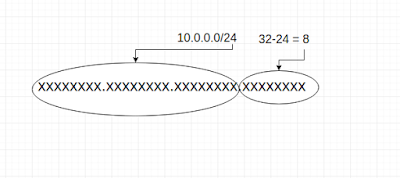
How to choose IP address range for resources for AWS virtual private cloud

You will often need to allocate  an IP address range when you design the network of an AWS VPC. Since VPC is a small network of resources(E...